Execution guidance
Type in your project folder on your laptop. Open its local browser. Docker Desktop uses a local Linux VM; no SSH is needed.
Execution guidance
After SSH, your shell is on the server. Use the laptop’s SSH tunnel to reach the server’s loopback service. Same lab, different host.
Reference evidence boundary
A sanitized engineering walkthrough, not a live connection. Historical TD1/TD2 local observations; registry and TD3–TD6 Hades replay remain unexecuted.
TD01 · My Laptop
01 / WHERE AM I?
TD1 — Run and understand one web container
Duration: 180 minutes, including recovery and explanation. Assessment: TD1 contributes 8 course points within the TD1–TD5 component.
Where are we in the project?
TD0 gave you a working Docker Engine. This first project stage runs a ready-made web image; TD2 will replace it with our own API image.
This stage adds: A web container you can run, inspect and recreate.
TD01 · My Laptop
02 / TODAY'S MISSION
Today's mission
Run one pinned web image as a named container, reach it through a loopback-only port, prove what stop/start and removal change, and leave the Docker host clean for TD2.
TD01 · My Laptop
03 / FINAL ARCHITECTURE IMAGE
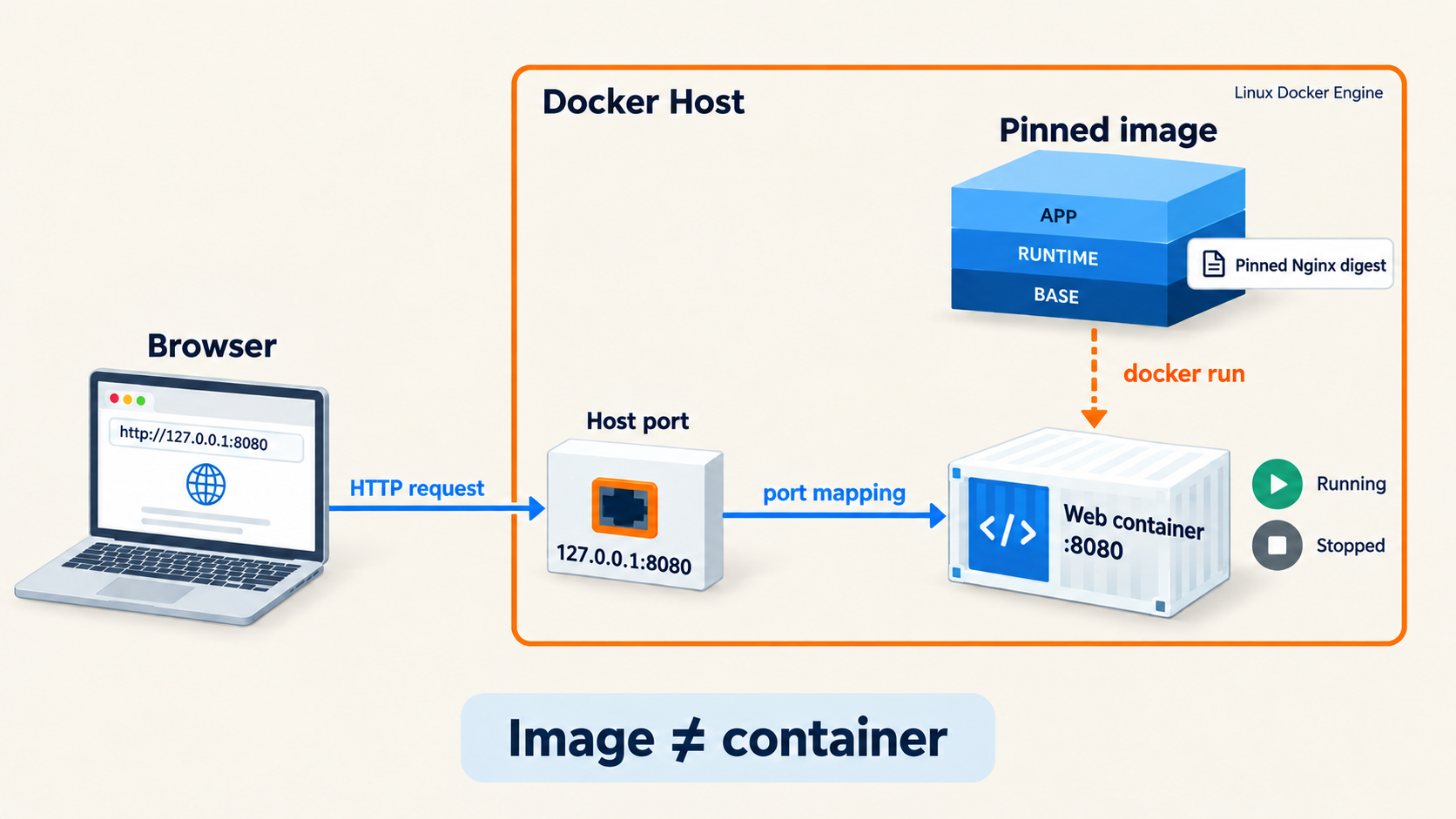
- Image → creates a container
- Container → runs the web process
- Host loopback :8080 → container :8080
TD01 · My Laptop
04 / MY ENVIRONMENT
Before you start
Before you start
Work in your copy of the supplied project starter. Open Bash in that folder and keep the terminal open through this lab. Run . scripts/course-env.sh to load the course's pinned image reference and platform. You need a working Linux Docker Engine, Git and curl. The setup page explains how to prepare them. Record your own commands and actual observations under evidence/TD01/.
My Laptop
Use your local Bash terminal and Docker Engine (Ubuntu under WSL2 on Windows). When your web container is running, open http://127.0.0.1:8080/ in your laptop browser.
My Own Cloud
SSH to your own Ubuntu server, open your project folder there, and run Docker commands in that SSH terminal. To use your laptop browser, open a second laptop terminal with ssh -N -o ExitOnForwardFailure=yes -L 127.0.0.1:8080:127.0.0.1:8080 your-user@your-server. Browse http://127.0.0.1:8080/. Keep the server's port 8080 closed to the internet.
Engineer Mode explains how the same concepts apply on Badr's VPS. You do not log in to Hades.
Type in your local Bash terminal. Docker runs on your laptop or inside Docker Desktop’s Linux VM. Open browser checks on your laptop.
After SSH, type Docker commands in your own Ubuntu server’s terminal. For browser checks, use a separate laptop terminal for the SSH tunnel. The server’s localhost and your laptop’s localhost are different.
Engineer Mode is Badr’s sanitized Hades reference. Students do not log in to Hades. Use your own laptop or server for the lab commands.
TD01 · My Laptop
05 / STEP-BY-STEP WORK
05 / STEP-BY-STEP WORK
Do the work, one step at a time.
Follow the commands in order. Keep the same terminal open so values from earlier steps remain available.
Step 1 — Verify Docker and the pinned image · 20 minutes
Run these checks from your project root:
. scripts/course-env.sh
docker version
docker info --format 'server={{.Name}} os={{.OSType}}'
printf 'image=%s\nplatform=%s\n' "$NGINX_IMAGE" "$COURSE_IMAGE_PLATFORM"
docker pull --platform "$COURSE_IMAGE_PLATFORM" "$NGINX_IMAGE"
docker image inspect --format 'image_id={{.Id}}' "$NGINX_IMAGE"
Confirm that Docker reports a Linux Server and that NGINX_IMAGE contains @sha256:. Pull that reference for COURSE_IMAGE_PLATFORM, then use docker image inspect to record its local image ID. A successful pull proves image availability; it does not prove HTTP works. If the daemon is missing, start Docker Desktop or inspect the Linux Docker service before continuing.
Step 2 — Define and run one web container · 30 minutes
Create scripts/td01-run.sh yourself so a fresh Bash shell can recreate one named td01-web container from NGINX_IMAGE. Give it course.lab=TD01 and course.environment=course-lab labels, no restart policy, and a host binding of 127.0.0.1:8080 to the image's web port 8080. Use docker run --help or the Docker run reference for flag syntax. Check your script with bash -n, execute it, then request http://127.0.0.1:8080/ using curl and your browser. Save the real response under evidence/TD01/. If the name or port is occupied, inspect its owner and labels before changing anything.
Step 3 — Inspect the process and network path · 30 minutes
Use these ordinary inspection commands, then save the outputs that support your claim:
docker ps --filter name=td01-web
docker ps -a --filter name=td01-web
docker inspect --format 'id={{.Id}} state={{.State.Status}} image={{.Config.Image}}' td01-web
docker top td01-web
docker port td01-web
docker logs --tail 30 td01-web
Save the actual image reference, container ID, state, processes, port bindings and one HTTP result. Explain in your own words which command proves that the process runs, which proves the host binding, and which proves an HTTP request succeeds. Check that the host IP is loopback; a wildcard binding does not satisfy this lab.
Step 4 — Predict, stop, start, remove and recreate · 55 minutes
Before each change, write a one-line prediction for the container ID, docker ps -a state, HTTP result and image availability. Save the original ID. Stop the container and check its state and HTTP failure. Start the same object and compare its ID with the original. Then stop and remove only your labelled TD1 object, confirm the image remains, and run your saved script to create a new object. Compare the new ID and HTTP response. Save actual outputs, including a failed request; do not write expected values into evidence files.
Step 5 — Check and leave a clean host · 45 minutes
Explain why start preserved the ID while recreation changed it. Confirm that the recreated container uses the pinned image and serves HTTP. Stop and remove only td01-web, leaving the image and your saved script in place for review. Commit the script to your project repository and write evidence/TD01/OBSERVATIONS.md with the commands, observed IDs, HTTP results, and any failed check. Do not use docker system prune or remove unrelated objects. TD2 will use port 8080 for your API image.
TD01 · My Laptop
06 / LIVE CHECKPOINT
Run the source checks in your terminal, then compare your observations. Browser markers are your own record, not a verification result.
Check it
Run the syntax and cleanup checks:
. scripts/course-env.sh
bash -n scripts/td01-run.sh
if docker container inspect td01-web >/dev/null 2>&1; then echo 'TD1 container remains'; exit 1; fi
docker image inspect "$NGINX_IMAGE" >/dev/null
Review your saved evidence: the original and restarted IDs match, the recreated ID differs, HTTP worked while running and failed while stopped, and the saved port binding used 127.0.0.1. Explain each result in evidence/TD01/OBSERVATIONS.md. Open your saved observation files and compare them with the commands you actually ran; these checks do not award a grade. If anything is missing, repeat the relevant observation and record the real output.
TD01 · My Laptop
07 / WHAT CHANGED IN MY PROJECT
What did we add to the project?
Before: Docker Engine, no application container. This TD added: a repeatable pinned-image run command and observed lifecycle. After: the web container is removed, the image and definition remain. Next: TD2 builds an API image from the supplied project source.
See the evolving project architecture ↗TD01 · My Laptop
08 / ENGINEER MODE
REAL VPS CONTEXT / NO STUDENT ACCESS TO HADES. See how this concept looks on a real VPS; perform and justify the assessed work on your own machine.
Engineer Mode
On Badr's Ubuntu VPS, SSH selects a remote Docker host; it does not change the meaning of image, container, host loopback or container ID. Think through where docker inspect runs and why a laptop browser needs an SSH tunnel to reach a service bound to the VPS loopback address. The full Hades command sequence and observations are held in the instructor release. Use your own laptop or server for this lab.
TD01 · My Laptop
09 / HELP
I'm stuck
| Symptom | Check | First correction |
|---|---|---|
| Docker shows Client only | docker version |
Start Docker Desktop, or inspect sudo systemctl status docker on your own Ubuntu host. Then rerun docker version. |
Name td01-web already exists |
docker ps -a --filter name=td01-web and inspect both course.* labels |
Remove only a verified TD1 object with docker rm -f td01-web, then rerun bash scripts/td01-run.sh. |
| Port 8080 is allocated | docker ps --format '{{.Names}} {{.Ports}}' |
Stop the identified lab container if you own it; rerun the saved TD1 command. |
| Browser fails on cloud but server curl works | Check SSH tunnel terminal | Reopen the tunnel shown in My Own Cloud; keep Docker published to server loopback. |
| Container exits or HTTP fails | docker logs --tail 40 td01-web and docker port td01-web |
Correct the reported cause and rerun; never call docker ps alone proof of health. |
Send only the exact command, exact error, and My Laptop or My Own Cloud. Never include credentials.
Assessment details
Assessment checklist (100 raw points; TD01 contributes 8 course points)
| Criterion | Core | Depth | Total | Required evidence |
|---|---|---|---|---|
| Versioned, digest-pinned definition | 20 | 5 | 25 | Script, Git SHA and inspected image reference |
| Replayable positive and negative tests | 20 | 5 | 25 | Four test cards with actual exit statuses |
| Runtime interpretation | 20 | 5 | 25 | Process, state, port and targeted log evidence explained correctly |
| Recreate/recovery and evidence hygiene | 20 | 5 | 25 | Fresh-shell replay, bounded reset, checksums and clean secret scan |
| Total | 80 | 20 | 100 |
Missing digest identity, wildcard publication, fabricated evidence or an unreplayable definition is a core failure. Depth is zero for a criterion whose core gate fails; extension work is ignored until core failures are repaired.