Execution guidance
Type in your project folder on your laptop. Open its local browser. Docker Desktop uses a local Linux VM; no SSH is needed.
Execution guidance
After SSH, your shell is on the server. Use the laptop’s SSH tunnel to reach the server’s loopback service. Same lab, different host.
Reference evidence boundary
A sanitized engineering walkthrough, not a live connection. Historical TD1/TD2 local observations; registry and TD3–TD6 Hades replay remain unexecuted.
TD00 · My Laptop
01 / WHERE AM I?
TD0 — Make Docker work
Where we are: No application container yet. TD0 is an ungraded 30–45 minute driving lesson before TD1.
This stage adds: A working terminal and Docker Engine.
TD00 · My Laptop
02 / TODAY'S MISSION
Today's mission: Open the right terminal, make one container run, then stop and remove only your own exercise containers.
TD00 · My Laptop
03 / FINAL ARCHITECTURE IMAGE
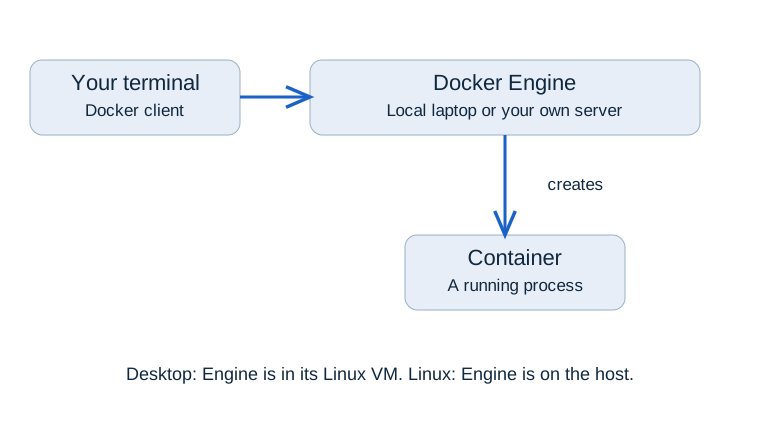
TD00 · My Laptop
04 / MY ENVIRONMENT
Before you start
Before you start
- Docker Desktop is open on Windows or macOS, or Docker Engine is running on Linux.
- On Windows, use Docker Desktop with WSL2 integration and open an Ubuntu 24.04 WSL terminal for all lab commands. On macOS or Linux, open a Bash terminal.
- Choose My Laptop for the simplest route. If you chose My Own Cloud, connect to your Ubuntu server by SSH first and run the same Docker commands there. Your own account and billing are your responsibility.
- You have an internet connection for the first image download.
No Git repository, school machine or submission is needed for TD0.
On WSL Ubuntu, install missing command-line tools with sudo apt update && sudo apt install -y python3 git curl. Docker Desktop supplies the Engine through WSL integration; check docker version below before continuing.
Type in your local Bash terminal. Docker runs on your laptop or inside Docker Desktop’s Linux VM. Open browser checks on your laptop.
After SSH, type Docker commands in your own Ubuntu server’s terminal. For browser checks, use a separate laptop terminal for the SSH tunnel. The server’s localhost and your laptop’s localhost are different.
Engineer Mode is Badr’s sanitized Hades reference. Students do not log in to Hades. Use your own laptop or server for the lab commands.
TD00 · My Laptop
05 / STEP-BY-STEP WORK
05 / STEP-BY-STEP WORK
Do the work, one step at a time.
Follow the commands in order. Keep the same terminal open so values from earlier steps remain available.
Step 1 — Find your terminal and Docker Engine · 10 minutes
Why are we doing this? A terminal is a window for commands. The Docker Engine is the service that creates containers. On My Laptop they are local; after SSH, the terminal sends commands to your own server.
Type this:
pwd
docker --version
docker version
What does it mean? The first command prints your current folder. The second reports the Docker client version. The third asks both client and Engine for their versions.
What should you see? A path, a Docker version, then sections headed Client and Server. The exact version numbers can differ.
One simple question: If you see Client but no Server, which part is unavailable?
If it fails: Start Docker Desktop and wait for it to finish. On Linux, check that Docker Engine is running and your account has permission to use it. On My Own Cloud, check that SSH is connected to your own server. Repeat docker version before moving on.
Step 2 — Run a short-lived container · 10 minutes
Why are we doing this? A container is a running instance of an image. This small program prints a message and exits.
Type this:
docker run --name td0-hello hello-world
docker ps
docker ps -a --filter name=td0-hello
What does it mean? Docker downloads the image if needed, creates a container, runs its program and keeps the stopped container in its list. The extra -a shows stopped containers.
What should you see? “Hello from Docker!” and an Exited td0-hello in the last list. It should not appear in the running list.
One simple question: Did the image stop existing when the container's program ended?
If it fails: If the name already exists from your earlier TD0 attempt, inspect it with docker ps -a --filter name=td0-hello. If it is yours, run docker start --attach td0-hello. Leave unfamiliar containers alone.
Step 3 — Run, stop and remove a longer-lived container · 10 minutes
Why are we doing this? An image remains available after its container is removed. A running process keeps a container active.
Type this:
docker rm td0-hello
docker run --detach --name td0-clock alpine:3.22 sleep 600
docker ps --filter name=td0-clock
docker stop td0-clock
docker ps -a --filter name=td0-clock
docker rm td0-clock
What does it mean? The clock waits for up to ten minutes. The stop command asks it to finish; rm deletes only that stopped exercise container.
What should you see? td0-clock first shows Up, then Exited, then disappears after rm. If ten minutes passed, it may already show Exited before stop.
One simple question: Which object remains available for another run: the image or the removed container?
If it fails: Check docker ps -a --filter name=td0-clock. Stop and remove only an object you created in this exercise. Do not run a system-wide cleanup command.
TD00 · My Laptop
06 / LIVE CHECKPOINT
Run the source checks in your terminal, then compare your observations. Browser markers are your own record, not a verification result.
Check it
- docker version shows both Client and Server.
- The hello-world message appeared.
- You can explain why hello-world stopped without an error.
- docker ps -a no longer shows your TD0 exercise containers after cleanup.
TD00 · My Laptop
07 / WHAT CHANGED IN MY PROJECT
What did we add to the project?
You can control the Docker Engine that will run our course application. In TD1, you will use a web container to see the image/container difference more clearly.
See the evolving project architecture ↗TD00 · My Laptop
08 / ENGINEER MODE
HADES REFERENCE / NO STUDENT ACCESS. Read Badr’s sanitized walkthrough; carry out your work on your own machine.
Engineer Mode
From TD1 onward, see how Badr performs the same work on his own VPS. Hades is an engineering reference, not a student machine.
TD00 · My Laptop
09 / HELP
I'm stuck
Send only: (1) the exact command, (2) the exact error, and (3) My Laptop or My Own Cloud. Never send passwords or tokens.